2021-2024 Toyota Multimedia Recorder (MMR) Data Download
Toyota's Tech Tip T-TT-0780-25 outlines the process for technicians to download Multimedia Recorder (MMR) data from the head unit in 2021-2024 Toyota vehicles. This data helps diagnose various audio and telematics concerns, including issues with Apple CarPlay, Android Auto, Bluetooth, and system…
 Ahmet Topcu2022 Toyota Camry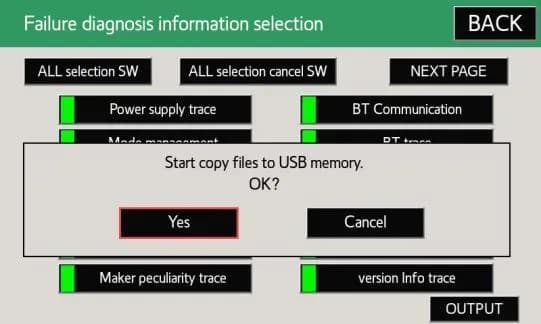
S'applique également à
- Toyota 4Runner
- 2021–2024
- Toyota Avalon
- 2021–2022
- Toyota C-HR
- 2021–2022
- Toyota Camry
- 2021, 2023, 2024
- Toyota Corolla
- 2021–2022
- Toyota Corolla Cross
- 2022
- Toyota Highlander
- 2021–2022
- Toyota Land Cruiser
- 2021
- Toyota Mirai
- 2021–2022
- Toyota Prius
- 2021–2022
- Toyota RAV4
- 2021–2022
- Toyota Sequoia
- 2021–2022
- Toyota Tacoma
- 2021–2023
- Toyota Tundra
- 2021
▸ Afficher 8 de plus▾ Afficher moins
Symptoms Requiring MMR Data Download
This Toyota Tech Tip, T-TT-0780-25, addresses various audio and telematics concerns in 2021-2024 Toyota vehicles. Technicians may need to perform a Toyota MMR data download from the head unit to investigate issues such as problems with Apple CarPlay, Android Auto, or Bluetooth connectivity. Other symptoms that might necessitate a Toyota MMR data download include the head unit rebooting, screen malfunctions, general connectivity problems, communication errors, or issues with system settings.
Diagnosis and Trigger Conditions
The Multimedia Recorder (MMR) data is a crucial tool for quality investigation, helping with the early detection and resolution of audio-related concerns. For specific issues like Apple CarPlay, Android Auto, or Bluetooth problems, the MMR data should ideally be pulled within approximately five minutes of the concern being duplicated. This timing is critical to ensure that relevant logs are saved in the head unit's internal memory and not overwritten. For other concerns, such as rebooting or screen issues, MMR logs may remain relevant for up to five days of average driving, depending on usage habits.
Important Warnings for Owners
Owners should be aware of several critical points regarding the Multimedia Recorder (MMR) data:
- If you have just experienced a concern and the ignition has not been switched off, you will need to cycle the key off and back on one time in a safe location before attempting to retrieve the MMR data.
- If the volume/power knob has been used to restart the head unit, any MMR data related to the concern will be lost. Therefore, do not restart the head unit if you are trying to capture MMR data for a concern.
- If a concern has been experienced, make sure to record the date and time of the occurrence and provide this information to your technician along with the MMR data.
- Please DO NOT attach MMR data to DPR/FTR (Dealer Product Report/Field Technical Report) if you are a technician; it should be uploaded to a TAS case or shared with FTS to be uploaded to OneDrive.
Multimedia Recorder (MMR) Data Download Procedure Summary
The process for performing a Toyota MMR data download involves several steps, primarily executed by a technician. First, with the ignition on and the vehicle stopped in a safe location, the technician will press and hold the “MENU” button on the faceplate while cycling the headlight switch from off to on three times. Alternatively, a GTS+ diagnostic tool can be used to navigate to the Diagnostic Mode through the Body Electrical, Navigation System, and Utility menus. Once in the Service Menu, the technician selects “Failure Diagnosis” and then “Diagnosis Recorder.”
The “Recording ON/OFF” function must be deselected (changing from green to white/grey). A hidden button is then pressed and held for up to 30 seconds. A blank 4GB to 32GB USB drive, formatted to FAT32, is inserted into the vehicle's USB port. The “output” button is pressed and held for up to 10 seconds, followed by selecting “Yes” and then “OK” on subsequent pop-up screens. After waiting for the files to copy to the USB drive, the technician selects “OK” again. Finally, the “BACK” button is pressed, and “Recording ON/OFF” is turned back to the ON position. The ignition is then turned off, and the USB drive is removed once its light turns off. The collected MMR data, typically a file named 17DISP_DREC.zip, is then confirmed and shared with the appropriate Toyota technical support channels.
Required Tools or Parts
To perform the Toyota MMR data download, technicians will need the following:
- An empty USB flash drive with a capacity between 4GB and 32GB.
- The USB drive must be formatted to FAT32.
- A GTS+ diagnostic tool may be used as an alternative method to access the diagnostic menu.
Owner Action
If your 2021-2024 Toyota vehicle is experiencing audio-related concerns, such as issues with Apple CarPlay, Android Auto, Bluetooth connectivity, or the head unit rebooting, it is recommended to visit an authorized Toyota dealership. Inform your service advisor about the specific symptoms and the date and time of occurrence. The dealership technicians are equipped to perform the Toyota MMR data download as outlined in Tech Tip T-TT-0780-25 to assist in diagnosing the problem.
Source: NHTSA ID 11018329
Galerie
9 images
Frequently Asked Questions
- What is the Toyota Multimedia Recorder (MMR) data download?
- The Toyota Multimedia Recorder (MMR) data download is a procedure outlined in Tech Tip T-TT-0780-25 that allows technicians to extract diagnostic information from the vehicle's head unit. This data helps in investigating and resolving various audio and telematics concerns.
- Why would my Toyota need an MMR data download?
- Your Toyota might need an MMR data download if you are experiencing issues with the audio system, Apple CarPlay, Android Auto, Bluetooth connectivity, or if the head unit is rebooting, or having screen or communication problems. The collected data assists technicians in pinpointing the root cause of these issues.
- Can I perform the Toyota MMR data download myself?
- No, the Toyota MMR data download procedure is intended for trained technicians and requires specific steps and potentially a diagnostic tool like GTS+. It is part of a quality investigation process and not meant for owner execution.
- What should I do if my 2021-2024 Toyota is experiencing audio or connectivity issues?
- If your 2021-2024 Toyota is having audio or connectivity issues, you should contact your authorized Toyota dealership. Be sure to note the exact date and time the problem occurred, as this information is crucial for technicians when performing a Toyota MMR data download to diagnose the issue.
Related Articles
2018-2024 Toyota Navigation Map Update Process TSB
Toyota has released Technical Service Bulletin T-SB-0001-26 detailing the Premium Audio Navigation Map Update Process for 2018-2024 vehicles. This bulletin outlines how to update navigation maps, points of interest, and system software using a Special Service Tool (SST) USB flash drive.
2018-2025 Toyota Misfire DTCs in Cold Temperatures TSB
Toyota has issued Technical Service Bulletin T-SB-0010-24 to address a 'MIL ON' condition with misfire Diagnostic Trouble Codes (DTCs) in various models, including the Toyota Camry, when operating in cold temperatures. This bulletin outlines a repair procedure involving the replacement of exhaust…
1992-2025 Toyota Acid Rain Damage Repair TSB
Toyota Technical Service Bulletin T-SB-0035-24 Rev2 addresses the diagnosis and repair of acid rain damage on 1992-2025 Toyota vehicles. This bulletin outlines procedures for minor, moderate, and severe paint damage caused by acidic airborne compounds.
2018-2024 Toyota Camry, Avalon Untucked Carpet TSB
Toyota Technical Service Bulletin T-SB-0032-23, issued June 5, 2023, addresses concerns regarding untucked or torn carpet loops near the door scuff plates in 2018-2024 Toyota Camry and Avalon vehicles. This bulletin has been superseded by T-SB-0101-24 as of November 5, 2024.
2021-2024 Toyota Camry/Avalon Carpet Untucked or Torn Loops TSB
Toyota has released Technical Service Bulletin T-SB-0101-24 for certain 2021-2024 Camry and Avalon vehicles experiencing untucked or torn carpet loops near the door scuff plate. This bulletin outlines an inspection and repair procedure to resolve the issue.
Leave a comment
Comments are moderated and may take a moment to appear. Only your first name and the initial of your last name are shown publicly.
Comments
Be the first to comment.