2014-2023 Nissan Infotainment Software Update TSB NTB23-018B
Nissan has released Technical Service Bulletin NTB23-018B to address various infotainment issues across a wide range of 2014-2023 models. This software update for the AV Control Unit aims to provide stability improvements and bug fixes, ensuring optimal performance of your vehicle's infotainment…

S'applique également à
- Nissan Altima
- 2021–2023
- Nissan Armada
- 2021–2023
- Nissan Frontier
- 2021–2023
- Nissan Kicks
- 2021–2023
- Nissan Leaf
- 2021–2023
- Nissan Maxima
- 2021–2023
- Nissan Murano
- 2021–2023
- Nissan NV
- 2021
- Nissan NV200
- 2021
- Nissan Pathfinder
- 2022–2023
- Nissan Rogue
- 2021–2023
- Nissan Rogue Sport
- 2021–2022
- Nissan Sentra
- 2022–2023
- Nissan Titan
- 2021–2023
- Nissan Versa
- 2021–2023
▸ Afficher 9 de plus▾ Afficher moins
Nissan has released Technical Service Bulletin (TSB) NTB23-018B to address a range of infotainment issues in various models from 2014-2023. This bulletin outlines procedures for updating the Audio Visual (AV) Control Unit software to improve system stability and resolve known bugs. Owners experiencing problems with their vehicle's infotainment system should be aware of this important update.
Symptoms
Owners of affected Nissan vehicles may experience various infotainment issues. These are generally described as software-related concerns that can impact the overall stability and functionality of the AV Control Unit. The software updates provided in this TSB are designed to deliver stability improvements and address general “bug” fixes, aiming to enhance the user experience and reliability of the infotainment system. Specific symptoms are not detailed, but the update targets overall system performance and stability.
Diagnosis / Trigger Conditions
If you are experiencing any infotainment issues or if your AV Control Unit has recently been replaced, it is essential to verify the current software version. Nissan technicians will use specific vehicle tables within TSB NTB23-018B to determine if a software update is required for your particular model and year. It's also important to note that if a customer is experiencing a software-related concern, technicians are advised to refer to TSB NTB21-038 first to differentiate between hardware and software issues before proceeding with this update.
Important Warnings
Nissan has issued several critical warnings to ensure the correct and safe execution of the software update:
- USB Drive Usage: "Do not use any other USB drive to perform the procedure in this bulletin." Only the special tool USB drive J-52727-1 (new tool number NI-52727-1) is approved. Furthermore, "The update-software must be the only file on the USB drive." This prevents corruption or improper installation.
- Charging Ports: "Do not insert the USB drive into a charging port. If used, the update-software and/or USB drive may become damaged. Only insert the USB drive in a USB media port." Charging ports are typically marked with a “lightning bolt” symbol.
- During Update: "Do not remove the USB drive during this process." Removing the USB drive prematurely can lead to system corruption or damage to the AV Control Unit. Also, "Do not turn the ignition OFF" during specific installation steps.
- Reboot Procedure: For Install 2, "Steps 55-62 must be completed. If they are not completed, the update may become corrupted." This includes ensuring "all doors remain closed during the 5 minute wait period. If a door is opened during the 5 minute wait period, the update may not complete and the AV Control Unit may become inoperable."
- Software Selection: "To avoid damage to the vehicle, ensure the correct infotainment update-software package is selected. Failure to select the correct infotainment update-software package may result in needing to replace the AV Control Unit."
- Bluetooth Re-pairing: "If step 98 is not completed, the phone may not connect with the vehicle while attempting to pair the phone to the vehicle." This applies after certain installation procedures.
- AV Control Unit Reinitialization: For Install 5, "Steps 92 - 97 must be completed to reinitialize the AV Control Unit. If they are not completed, the update may become corrupt."
- Hazard Lamps: "The hazard warning lamps must remain ON until the software update has been completed." This prevents the Body Control Module (BCM) from entering battery saver mode during the update.
- Install 3 Specific: "Reprogramming is not complete until the AV Control Unit reboots and returns to the main MENU screen." Also, "Do NOT remove the USB drive unless the AV Control Unit has rebooted and the main MENU screen... is displayed." Additionally, "If steps 71-76 are not completed, to perform the second software update, the AV Control Unit will not operate correctly."
- Install 4 Specific: "Do not remove the USB drive until the screen in Figure 54 is displayed. If removed prior to this screen being displayed, the AV Control Unit may be damaged."
Repair Procedure Summary
The Nissan infotainment software update process involves several detailed steps, including checking the current software version, downloading the update files, and installing them onto the AV Control Unit. The specific steps vary slightly depending on the vehicle model and year, as outlined in different "SW Check" and "Install" procedures within the TSB. Technicians must refer to the specific vehicle tables to determine the correct procedure and software package for each vehicle.
Software Version Check Procedures (SW Check 1-6)
These procedures guide technicians on how to access the AV Control Unit's service menu to identify the current software version. This typically involves a series of button presses and knob turns:
- SW Check 1: Turn the audio system OFF. Push and hold the APPS button. Turn the TUNE-SCROLL knob in a specific pattern (counterclockwise three or more clicks, clockwise three or more clicks, repeated). Continue until the "SERVICE MENU" screen appears (Figure 2). Select "Version" to view software details like "Software: FXXX", "Hardware: 031", "Order No.: 7612051270", and "Serial No.: 5117473" (Figure 3).
- SW Check 2: Push the MENU button (Figure 4). Select the "Info" icon (Figure 5). Select "System Information" (Figure 6). Select "Software Version" (Figure 7) to view details such as "Software Version: XXXX" and "IVI ID: 05G37539" (Figure 8).
- SW Check 3: Turn the ignition ON, then turn the audio system OFF. Access the System Diagnostic Menu by pressing and holding the MENU button and turning the VOLUME knob forty (40) or more clicks in either direction (Figure 9). Select "Confirmation / Adjustment". Select "Page DOWN" (Figure 10). Select "Version Information" (Figure 11) to view system software details including "SYS Software Ver: XXXXXXXX", "HIMI-LSI Software ver: 05.00.0F.04", "Audio-LSI Software Ver: 05.00.0F.04", "Audio-LSI Data Ver(System data): 50.F4.10.0D", "Camera GuideLine Ver: P02F.02.10.01", "Bluetooth (Device address)", and "Nissan Parts number" (Figure 12).
- SW Check 4: Select "Settings" in the lower right corner of the AV Control Unit display (Figure 13). Select "Info" (Figure 14). Select "System Information" (Figure 15). Select "Version Information" (Figure 16) to view details like "Software Version: 321" and "IVI ID: 0006926PP4360KA" (Figure 17).
- SW Check 5: While holding the MENU button down, turn the tune knob left-right-left (Figure 18). Select "Confirmation/Adjustment" (Figure 19). Select "Version Information" (Figure 20) to view details such as "H/U Software:283C31091E", "Overall SW version 3387 210317", "H/U Part Number: 259159DL0C", "Map Version:17330_7_7", and "TCU Hardware:212.0.0" (Figure 21).
- SW Check 6: From the MENU (Home) screen (Figure 22), select "Info". Select "System Information" (Figure 23). Select "Version Information" (Figure 24) to view details like "Software Version: 283C31570B", "Map Version: 17330_7_7", "Navigation Version: nav21.06_stabi_2022.27.2", "Parts Number: 259156SA3A", "Serial Number: 00000001P02MOYW", and "IVI ID: 1P02MOYW" (Figure 25).
If the current software version is not the latest, an update is required.
Infotainment Software Installation Procedures (Install 1-5)
Each installation procedure is tailored to different vehicle configurations and software types. Common steps include:
- Install 1: Connect a battery maintainer, set the parking brake, cycle ignition to ON (engine OFF), and turn ON hazard warning lamps. Record radio settings. Turn audio system OFF. Access the "SERVICE MENU" (APPS button + TUNE-SCROLL knob pattern). Select "Version", then "Update System Software". Insert the special tool USB drive into the AV Control Unit's USB port and select "OK". Confirm that the "Current Version" and "Media Version" are different, then select "Update". Wait up to 35 minutes for the update to complete. If "Update Failed!" is displayed or the AV Control Unit continuously reboots, insert the USB drive and proceed to step 47. Once "STATUS: Update successful !" is displayed (Figure 32), remove the USB drive. The system will restart.
- Install 2: Set the parking brake. Start the engine and wait 60 seconds for the system to load. Insert the USB drive into the vehicle's USB media port (Figure 37). Wait 10-30 seconds for the "Software Update Initializing...." screen (Figure 38) to appear. The Nissan logo may briefly appear (Figure 39). Wait 15-25 minutes for the update to complete (Figure 40). Once "The software Update has finished." is displayed (Figure 41), remove the USB drive. The system will reboot. Turn the ignition OFF. Open and close the driver door, then ensure all doors are closed. Wait 5 minutes. Turn the ignition ON (engine OFF) and wait for the Nissan logo (Figure 42) to appear. Wait about 1 minute for the MENU (Home) screen (Figure 43) to display. Turn the ignition OFF. Repeat steps 57-61 one more time.
- Install 3: Turn ON hazard warning lamps, ignition ON, audio system ON. Record radio settings. Turn audio system OFF. Insert the special tool USB drive into the USB media port (Figure 44). Select "Yes" to begin reprogramming (Figure 46). Reprogramming takes 5-10 minutes. The AV Control Unit will reboot and return to the main MENU screen (Figure 47). Remove the USB drive. Load the second update file (e.g., LD001 first, then another specific file) onto the USB drive. Repeat steps 63-70. Perform AV Control Unit initialization: press and hold Menu button, then Audio button, then Seek right button three times (Figure 48). Select "Next", then "Factory Cold Start", then "Yes" (Figure 49). Turn OFF hazard warning lamps. Restore radio presets and clock settings. Instruct the customer to delete and re-pair their phone from the Bluetooth® menu.
- Install 4: Set the parking brake. Start the engine and wait 60 seconds. Insert the USB drive into the USB media port (Figure 50). Wait 10-30 seconds for the software update screen (Figure 51) to appear and select "OK". If a "New USB music device detected" message appears (Figure 52), select "No". Review the software update requirements (Figure 53) and select "Accept". When "The software update is completed." is displayed (Figure 54), remove the USB drive. Turn the ignition OFF. Open and close the driver door. Restart the engine and allow the system to boot up (approx. 30 seconds), displaying the Nissan logo (Figure 55).
- Install 5: Set the parking brake. Start the engine and wait 60 seconds. Insert the USB drive into the USB media port (Figure 56). Wait for the update to complete (Figure 58). Once "Software is successfully updated." is displayed (Figure 59), remove the USB drive. The system will reboot. Reinitialize the AV Control Unit by pressing and holding the MENU button on the IT Commander (Figure 60) and turning the AV Control Unit volume knob left-right-left (Figure 61). Select "Confirmation/Adjustment" (Figure 62), then "Initialize Settings" (Figure 63), then "User Data Initialization" (Figure 64). Select "Yes" to delete all data and settings (Figure 65) and "Yes" to restore factory settings (Figure 66). Instruct the customer to delete and re-pair their phone from the Bluetooth® menu.
Confirmation Procedures (Confirmation 1 & 2)
After installation, technicians re-access the service menu to confirm that the new software version has been successfully installed. This involves verifying the software version displayed matches the latest version specified in the TSB. Finally, radio settings are restored, hazard lamps are turned off, and customers are advised to delete and re-pair their Bluetooth devices.
Required Tools or Parts
To perform this Nissan infotainment software update, technicians will utilize specific tools and resources:
- Special Tool USB Drive: J-52727-1 (new tool number NI-52727-1). This USB drive is specifically designed and approved for this procedure. Additional drives can be purchased from Tech-Mate (www.techmatetools.com or 1-833-397-3493).
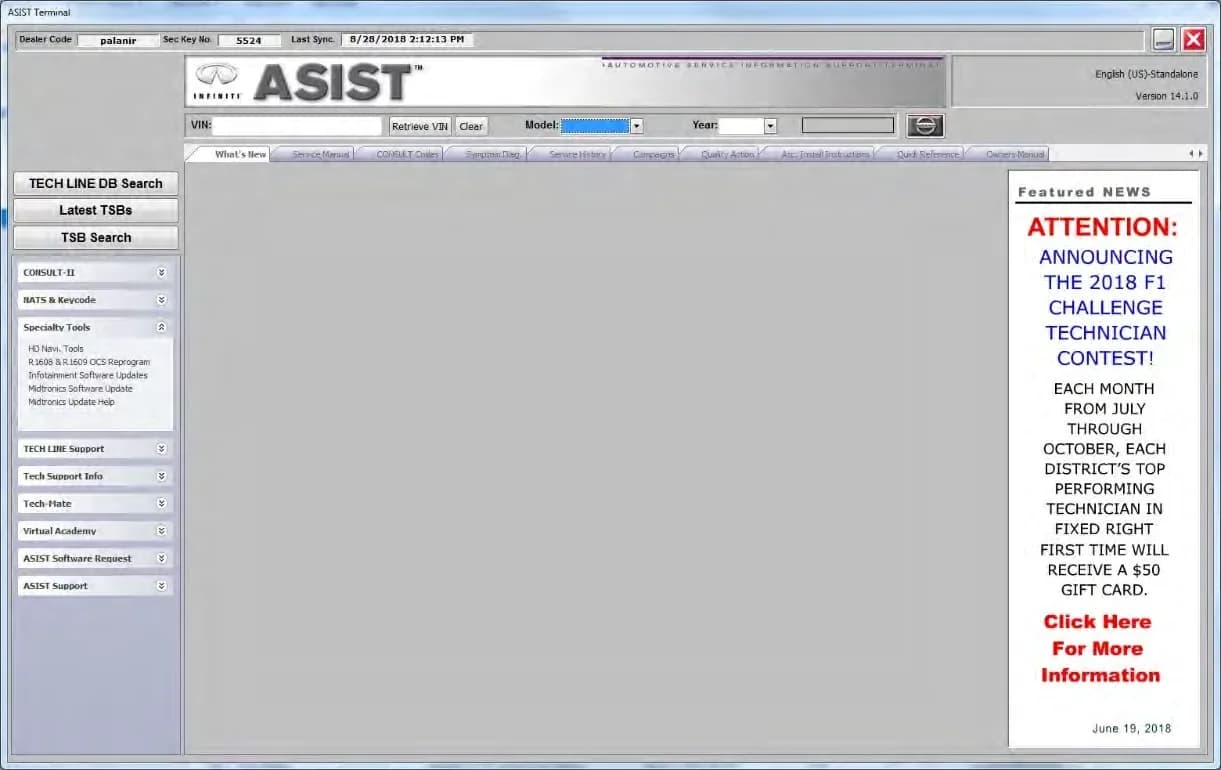
- CONSULT PC: A Nissan CONSULT PC is required, which must be connected to the internet and have its ASIST software synchronized to the current date. This PC is used to download the infotainment update software onto the special tool USB drive.
- ASIST: Nissan's ASIST system is used to download the correct update software package. The download process is estimated to take 10-15 minutes. Examples of infotainment update software packages include LD001, LD005, LD003, LD004, J-52812-11, IVI003, IVI830, IVI354, AIVI21_550_ZE1, IVI3387, AIVI20_845, AIVI21_550_D41, AIVI21_550_P15, IVI5172, and IVI4620.
Claims Information
For warranty claims related to this service, technicians use specific CLAIM IDENTIFIERs and OP CODEs:
| CLAIM IDENTIFIER | DESCRIPTION | OP CODE | SYM | DIA | FRT |
|---|---|---|---|---|---|
| CL1 | Perform Software Check and Update the AV Control Unit | QX42AA | 0.4 | ||
| CL2 | RX4SAA | 0.3 | |||
| CL3 | RX8MAA | 0.3 | |||
| CL4 | RX05AA | ZE | 32 | 0.5 | |
| CL5 | RXB7AA | 0.3 | |||
| CL6 | RX5AAA | 0.3 | |||
| CL7 | RX0LAA | 0.3 |
Owner Action
If your 2014-2023 Nissan vehicle is experiencing infotainment issues, it is recommended to schedule an appointment with your authorized Nissan dealer. They will be able to diagnose the specific problem and apply the necessary Nissan infotainment software update as outlined in TSB NTB23-018B. After the update, you may need to re-pair your Bluetooth-enabled devices (such as your smartphone) with the vehicle's infotainment system to ensure proper connectivity. This update also introduces a new feature called "SXM Smart Favorites," which allows users to designate presets within SXM1, SXM2, and SXM3 bands as Smart Favorites, playing the current track from the beginning when selected.
Amendment History
This bulletin has undergone several revisions:
- March 8, 2023: Original bulletin NTB23-018 published.
- March 10, 2023: NTB23-018A published, updating Infotainment Update-Software package numbers on pages 10, 15, 32, and 33.
- March 21, 2023: NTB23-018B published, updating the 2023 Altima column on page 5 and Infotainment Update-Software package numbers on page 15.
NHTSA ID: 10234080
Galerie
69 images
Frequently Asked Questions
- What is Nissan TSB NTB23-018B about?
- Nissan TSB NTB23-018B details a software update for the AV Control Unit in various 2014-2023 Nissan models to address infotainment issues, improve stability, and provide bug fixes.
- How do I know if my Nissan needs the infotainment software update?
- If your 2014-2023 Nissan vehicle is experiencing infotainment system problems, your dealer can check the current software version of your AV Control Unit against the latest versions specified in TSB NTB23-018B to determine if an update is necessary.
- Can I perform the Nissan infotainment software update myself?
- No, the Nissan infotainment software update requires specialized tools, specific software files like LD001, and detailed procedures outlined in TSB NTB23-018B. It should only be performed by qualified Nissan technicians to avoid potential damage to the AV Control Unit.
- What should I do after the Nissan infotainment software update?
- After your Nissan infotainment software update is completed by a dealer, you may need to re-pair your Bluetooth devices, such as your smartphone, with the vehicle's infotainment system to restore full functionality. You can also explore new features like "SXM Smart Favorites" if applicable.
- What are the risks if the Nissan infotainment software update is not done correctly?
- Improper execution of the Nissan infotainment software update, such as removing the USB drive prematurely or using incorrect tools like a charging port instead of a USB media port, can corrupt the system, damage the AV Control Unit, or lead to the infotainment system becoming inoperable.
What Nissan Sentra owners report
Counted from the records in our database across 45 model years.
- 5,975
- Owner complaints
- 62
- Recalls
- 710
- Service bulletins
- 600
- Crashes reported
- 123
- Fires reported
- 523
- Injuries reported
The 2021 model year
133 complaints, the 21st most of 45 model years on file. Owners reported 15 crashes, 1 fire and 9 injuries for this year, which also has 3 recalls on file.
Equipment and Electrical System, the system this article covers, accounts for 906 of 5,975 complaints (15%), including 38 for 2021.
Complaints by model year
| 2001 | 236 | |
|---|---|---|
| 2002 | 318 | |
| 2013 | 638 | |
| 2014 | 380 | |
| 2015 | 352 | |
| 2016 | 270 | |
| 2017 | 231 | |
| 2019 | 223 | |
| 2020 | 207 | |
| 2021 | 133 |
Most-reported systems
- Power Train — 1,287
- Electrical System — 839
- Air Bags — 779
- Engine — 679
- Engine And Engine Cooling — 650
Latest recalls for the 2021 model year
- 23V628000 — Back Over Prevention (Sep 2023)
- 23V581000 — Steering (Aug 2023)
- 21V461000 — Steering (Jun 2021)
Recent owner reports about equipment and electrical system
The infotainment/radio system in my 2021 Nissan Sentra intermittently reboots and produces static. When this happens, the backup camera freezes or shuts off completely.
Read owner complaints →The passenger front, and both back windows no longer function. This appears to be a common issue when searching the internet. There is also an issue with the keyless start, as it often does not recognize that the fob is in the vehicle, or gives a low batter…
Complaints are owner reports filed with NHTSA. They are unverified, and counts depend on how many vehicles were sold, so they are not a failure rate.
Related Articles
2021-2024 Nissan Sentra CVT Removal Tool TSB
Nissan Technical Service Bulletin NTB24-045 introduces new engine support tools and a revised procedure for 2021-2024 Sentra models. This update allows technicians to remove the Continuously Variable Transmission (CVT) without also needing to remove the engine, streamlining complex transmission…
2020-2024 Nissan B2E01-96 Internal Battery DTC TSB
Nissan Technical Service Bulletin NTB22-027B provides a procedure to clear DTC B2E01-96, related to the internal battery of the Telematics Communication Unit (TCU), affecting various 2020-2024 Nissan models.
2021-2024 Nissan Sentra Front Rattle or Knock Noise TSB
Nissan has issued Technical Service Bulletin NTB22-045B for 2021-2024 Sentra models experiencing a rattle or knock noise from the front, especially when driving over bumps or turning. This bulletin identifies the passenger (RH) side Engine Mounting Insulator as the likely cause.
2021-2022 Nissan Sentra Inner Tie Rod Recall R23B3
Nissan is conducting a voluntary safety recall, R23B3, for certain 2021-2022 Sentra vehicles to replace both inner tie rods. This essential steering component replacement will be performed at no charge to the customer.
2021 Nissan Sentra False AEB/FCW Activation TSB
Owners of 2021 Nissan Sentra vehicles may experience false activation or unexpected braking from the Automatic Emergency Braking (AEB) or Forward Collision Warning (FCW) systems. Nissan Technical Service Bulletin NTB21-115A provides a software update to the ICC/ADAS 2 module to resolve this issue.
Leave a comment
Comments are moderated and may take a moment to appear. Only your first name and the initial of your last name are shown publicly.
Comments
Be the first to comment.