2019-2025 Audi Wireless CarPlay Connection TSB
Audi has issued TSB 2062466/4 to address common problems with Wireless Apple CarPlay connection in 2019-2025 models. This bulletin provides detailed troubleshooting steps for owners and technicians to resolve issues like intermittent connections and automatic startup failures.

También aplica a
- Audi A3
- 2022–2024
- Audi A4
- 2022–2024
- Audi A4 allroad
- 2022–2024
- Audi A5
- 2021–2024
- Audi A6
- 2021–2025
- Audi A6 allroad
- 2021–2025
- Audi A7
- 2021–2025
- Audi A7 e
- 2021–2022
- Audi A8 L e
- 2021
- Audi e-tron GT
- 2022–2024
- Audi Q3
- 2021–2024
- Audi Q5
- 2021–2022
- Audi Q7
- 2021–2025
- Audi Q8
- 2022–2024
- Audi RS 3
- 2022–2024
- Audi RS 5
- 2021–2024
- Audi RS 6 Avant
- 2021–2025
- Audi RS 7
- 2021–2025
- Audi RS e-tron GT
- 2022–2024
- Audi RS Q8
- 2021–2024
- Audi S3
- 2022–2024
- Audi S4
- 2022–2024
- Audi S5
- 2021–2024
- Audi S6
- 2021–2025
- Audi S7
- 2021–2025
- Audi S8
- 2021–2025
- Audi SQ5
- 2021–2022
- Audi SQ7
- 2021–2025
- Audi SQ8
- 2021–2024
▸ Mostrar 23 más▾ Mostrar menos
Owners of 2019-2025 Audi vehicles may experience problems with Wireless Apple CarPlay functionality, where the system either fails to connect reliably or operates intermittently. This issue, described in Audi Technical Service Bulletin 91 24 70 2062466/4, supersedes a previous bulletin (Group 91 number 22-47 dated November 8, 2022) and offers detailed guidance to diagnose and resolve these connectivity concerns.
This bulletin is crucial for addressing instances where the Audi Q8 Wireless CarPlay not connecting reliably, ensuring a seamless integration of your iPhone with the vehicle's infotainment system.
Revision History
This Technical Service Bulletin (TSB) 2062466/4 has undergone several revisions to improve its guidance:
- Revision 4 (February 15, 2024): Revised Header (added model years) and Revised Condition (updated to template).
- Revision 3 (November 8, 2022): Revised Service (updated troubleshooting guide), Revised Warranty (added labor operations), Revised Header (added model year), and Revised Additional Information (included TSB reference).
- Revision 2 (January 25, 2022): Revised Header (added model year).
Symptoms of Wireless CarPlay Issues
Owners may observe the following symptoms indicating a problem with Wireless Apple CarPlay:
- "The customer can't reliably connect their iPhone to the vehicle via Apple CarPlay."
- "Automatic and/or manual connection attempts fail."
- "Connection via USB cable works normally."
- Workshop findings often reproduce the complaint with the customer's iPhone, while other Apple or Android devices may connect wirelessly without issues.
- "Intermittently after starting the vehicle, wireless CarPlay cannot be started." Upon touching the tile in the MMI, the tile turns green, but "CarPlay does not start."
- "Since the latest iOS update, the customer has had issues with Wireless CarPlay not connecting at times."
- "Since the Audi Connect PLUS plan has expired, the customer can no longer use Wireless CarPlay."
- The system may ask, "What if Apple CarPlay does not turn on automatically after turning on the car?"
- "Wireless CarPlay works intermittently."
Important Warnings and Notices
Several critical advisories are highlighted in the TSB:
- CAUTION: "The MY 2020 A4/A5 models with MIB3 do not support Wireless CarPlay." Owners of these specific models should be aware that wireless CarPlay is not an intended feature.
- NOTICE: "When using Wired or Wireless CarPlay, the MMI does not store any personal or location data from the phone." The MMI functions as a remote display for the phone, passing only video, audio, and vehicle GPS data. Only the phone's MAC ID is stored in the MMI when a CarPlay session ends.
- NOTICE: "Further Troubleshooting information can be found on Audi ZenDesk (https://audi.zendesk.com)"
- CAUTION: "If you would like to submit a technical repair inquiry about Apple CarPlay™, please fill out the attached form (en_fragebogen_audi_smartphone_interface.xlsx) completely and attach it with all required information and documentation to the technical repair inquiry."
- "If the vehicle is outside of any warranty, this Technical Service Bulletin is informational only."
Understanding Wireless CarPlay Connection
Wireless CarPlay utilizes the vehicle's Wi-Fi to provide the same functionality as wired Apple CarPlay, without requiring a tethered USB connection. Initial pairing is performed using the Bluetooth system. The type of MMI system (MIB2+ or MIB3) and its associated ConBox module (Low, High, or OCU3/4) determines how Wi-Fi and Bluetooth are controlled. For MIB2+ MMI, the Wi-Fi hotspot is controlled by the ConBox Low module, and the MMI controls the Bluetooth system. For MIB3 MMI, both Wi-Fi and Bluetooth systems are controlled by the ConBox High module.
There are two primary pairing methods: Bluetooth connection and Wi-Fi connection. With the Bluetooth pairing method, the phone always uses its own data plan (LTE). With the Wi-Fi pairing method, the phone always attempts to use the vehicle's Wi-Fi hotspot data. If "Wi-Fi Assist" is turned on in the "Cellular" settings of the iOS, the phone may attempt to use its data plan, which can lead to connectivity issues. Owners experiencing this should contact their mobile network provider or Apple customer support.
Initial Pairing Steps for Wireless CarPlay
Before troubleshooting, ensure the following prerequisites are met for successful initial pairing:
- SIRI must be enabled and configured on the iPhone by checking "Settings >> General."
- Bluetooth must be turned on for both the iPhone and the MMI (used only for setup).
- The iPhone must be discoverable via Bluetooth. This is achieved by opening the Bluetooth pairing menu on the iPhone.
- Wi-Fi must be turned on on the iPhone. If it's not on, the iOS software should prompt the user to turn it on.
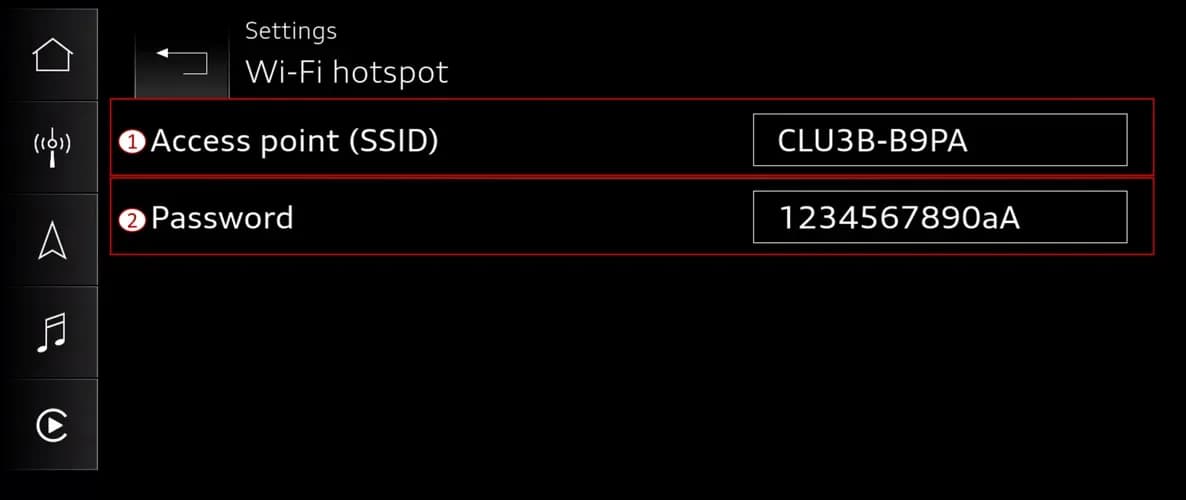
- Verify that the Bluetooth name in the vehicle's Bluetooth settings matches the WiFi SSID name in the vehicle's WiFi settings (as shown in Figure 1 and 2 of the TSB, which illustrate the Bluetooth name and Wi-Fi SSID settings).
- Ensure a Wi-Fi password is set in the vehicle's Wi-Fi settings (as shown in Figure 2 of the TSB, displaying the access point SSID and password).
After these prerequisites are met, establish an Audi Smartphone Interface (ASI) pairing using the MMI and accept the prompt to "Enable Wireless CarPlay" (as depicted in Figure 3 of the TSB, showing the initial Apple CarPlay pairing prompt on iPhone). The MMI will share Wi-Fi security credentials with the iPhone over Bluetooth. Once connected, the iPhone will use a private channel for Wireless CarPlay communication, and the Audi hotspot name will not appear in the iPhone's Wi-Fi settings. The iPhone will continue to use its LTE network for data, and the Bluetooth system is automatically turned off once CarPlay is active.
Troubleshooting Wireless CarPlay Connection Problems
If you're experiencing issues with your Audi Q8 Wireless CarPlay not connecting, follow these solutions:
CarPlay Tile Turns Green, But CarPlay Does Not Start
This often occurs when the MMI cannot find the iPhone on its Wi-Fi network, possibly because the iPhone is connected to another Wi-Fi hotspot. The MMI has two Wi-Fi bands: 2.4Ghz (labeled AUDI_XXXX) and 5Ghz (labeled AUDI_XXXX_5Ghz). Apple CarPlay uses the 5Ghz band. If the iPhone manually pairs to the 2.4Ghz band, it can cause this issue.
To resolve this:
- Cycle CarPlay Toggle: On the iPhone, go to "Settings > Bluetooth," select the little 'i' next to the MMI's name (Figure 3, Step 2 in the TSB), and then cycle the "CarPlay" option off and back on (Figure 3, Step 3). If CarPlay does not automatically start, then reselect it in the MMI. This step may need to be repeated if the issue reoccurs.
Wireless CarPlay Not Connecting After iOS Update
Recent iOS updates can sometimes interfere with connectivity. If your Audi Q8 Wireless CarPlay not connecting after an update:
- Delete All Phone Pairings from MMI: Delete all phone pairings in the Audi Smartphone Interface (ASI) and Bluetooth settings from the MMI by long-pressing the tile and selecting "delete" (as shown in Figure 4 of the TSB, which illustrates the delete pairing option).
- Remove Vehicle Wi-Fi Hotspots from iPhone: On the iPhone, go to "Settings > Wi-Fi," tap "Edit" (top right), and remove all vehicle Wi-Fi hotspots from the list of known networks (as depicted in Figure 5 of the TSB, showing how to delete Wi-Fi pairing on the phone).
- Delete Vehicle Bluetooth Settings from iPhone: In the iPhone, go to "Settings > Bluetooth," tap the blue 'i' next to the device name, and select "Forget this device" (as shown in Figure 6 of the TSB, illustrating how to delete Bluetooth pairing from the phone).
- Delete Vehicle CarPlay Settings from iPhone: In the iPhone, navigate to "Settings > General > CarPlay," select the vehicle, and choose "Forget this car" (as shown in Figure 6 of the TSB, also illustrating how to delete CarPlay pairing from the phone).
- Reset Network Settings on iPhone: On the iPhone, go to "Settings > General > Reset > Reset Network Settings" (as shown in Figure 7 of the TSB, displaying the Reset Network Settings option). This action resets all saved Wi-Fi networks and their passwords, cellular settings, and VPN/APN settings. After resetting, re-pair the phone following the initial pairing steps.
Wireless CarPlay Not Working Due to Expired Audi Connect PLUS Plan
If your Audi Connect PLUS plan has expired, the iPhone might try to use the vehicle's Wi-Fi hotspot for data, which won't work without an active plan. This can cause the Audi Q8 Wireless CarPlay not connecting.
- Enable Wi-Fi Assist or Re-pair: Either turn on "Wi-Fi Assist" on your iPhone or delete all Wi-Fi and Bluetooth pairings, then perform a new Bluetooth-only pairing. If the iPhone was manually connected to the MMI's hotspot using the Wi-Fi pairing method, it will try to use it for sending and receiving data. If the Audi Connect PLUS plan is not active and "Cellular Wi-Fi Assist" is not turned on, the iPhone will disconnect from the vehicle's Wi-Fi hotspot. Enabling "Cellular Wi-Fi Assist" forces the iPhone to stay connected to a Wi-Fi hotspot that does not provide internet data but will utilize LTE for internet data only. This solution works with some iOS versions and may break during an iOS update.
CarPlay Not Starting Automatically
If CarPlay doesn't start automatically when you turn on the car:
- Check Wi-Fi Hotspot: Ensure the iPhone is not connected to a different Wi-Fi hotspot (home or work). Wireless CarPlay requires the iPhone to be connected to the vehicle's Wi-Fi hotspot, either directly or via the private channel (which is not seen in the iPhone Wi-Fi settings). The key is to ensure the iPhone is not connected to another Wi-Fi hotspot outside of the car.
- Verify iPhone Setting: Check the iPhone's settings to ensure the automatic CarPlay connection to the vehicle is enabled.
Intermittent Wireless CarPlay Operation
For intermittent issues, especially with newer iOS versions:
- Unlock iPhone / Disable USB Security: Unlock your iPhone or turn off the USB accessories security feature. Apple iOS versions starting with iOS 12 have security features that lock out connected USB accessories (including the MMI) if the iPhone hasn't been unlocked within the last hour before connecting to the vehicle's USB or wirelessly for CarPlay. Unlocking the iPhone can resolve this concern.
5Ghz Wi-Fi Hotspot in the Vehicle
The 5Ghz Wi-Fi hotspot is part of the dual-band high-speed Wi-Fi system in the MMI. Similar to modern home routers, it offers both 2.4Ghz and 5Ghz bands. When pairing the iPhone to the MMI, it will typically connect to the 5Ghz hotspot, which is normal. This connection may not be explicitly shown in the iPhone "Settings >> Wi-Fi" when connected for Wireless CarPlay. The 5Ghz band provides higher bandwidth, which is critical for wirelessly streaming video and audio in CarPlay, although it has a shorter signal range.
Warranty Information
Warranty claims for this issue are applicable only if the pairings were deleted and reestablished. All claims must adhere to the Audi Warranty Policies and Procedures Manual.
- Claim Type: 110 (Up to 48 Months/50,000 Miles) or G10 (for CPO Covered Vehicles – Verify Owner).
- Service Number: 9109
- Damage Code: AD39
- Labor Operations:
- Check display and operating unit control unit: 9196 0199 (20 Time Units)
- Diagnostic Time: GFF (No allowance, 0 Time Units)
- Road test prior to the service procedure: (No allowance, 0 Time Units)
- Road test after the service procedure: (No allowance, 0 Time Units)
Related Technical Service Bulletins
Another relevant TSB that may be helpful is 2068435/1, titled "91 MIB3: Failure to establish a Bluetooth connection with iOS 16.0.x (iPhone)."
Source: NHTSA ID: 10250567
Galería
10 imágenes
Frequently Asked Questions
- What should I do if my Audi Wireless CarPlay is not connecting?
- First, ensure your iPhone's Siri, Bluetooth, and Wi-Fi are enabled. Then, try cycling the CarPlay toggle in your iPhone's Bluetooth settings for the MMI. If issues persist, you may need to delete all existing phone and Wi-Fi pairings from both your iPhone and the MMI, then re-pair from scratch following the steps outlined in Audi TSB 2062466/4.
- Can an iOS update cause my Audi Wireless CarPlay to stop working?
- Yes, Audi TSB 2062466/4 indicates that recent iOS updates can sometimes lead to issues with Wireless CarPlay not connecting. The recommended solution involves deleting all phone and Wi-Fi pairings from both the MMI and your iPhone, including resetting network settings on the iPhone, before attempting to re-pair.
- Why does my Audi Wireless CarPlay work intermittently?
- Intermittent Wireless CarPlay functionality can be caused by your iPhone connecting to other Wi-Fi hotspots, an expired Audi Connect PLUS plan, or security features in iOS. Ensure your iPhone is not connected to other Wi-Fi networks, and try unlocking your iPhone or disabling the USB accessories security feature as per TSB 2062466/4.
- Is the Audi Connect PLUS plan required for Wireless CarPlay?
- No, an active Audi Connect PLUS plan is not required for Wireless CarPlay itself. However, if your iPhone attempts to use the vehicle's Wi-Fi hotspot for internet data and the plan is expired, it can disrupt CarPlay connectivity. Solutions involve enabling Wi-Fi Assist on your iPhone or re-pairing using the Bluetooth method as detailed in TSB 2062466/4.
- Are there any Audi models that do not support Wireless CarPlay with MIB3?
- Yes, the TSB explicitly states: "The MY 2020 A4/A5 models with MIB3 do not support Wireless CarPlay." Owners of these specific models should be aware of this limitation.
What Audi Q8 owners report
Counted from the records in our database across 7 model years.
- 206
- Owner complaints
- 18
- Recalls
- 2,216
- Service bulletins
- 6
- Crashes reported
- 1
- Fires reported
- 4
- Injuries reported
The 2021 model year
30 complaints, the 2nd most of 7 model years on file. Owners reported 0 crashes, 0 fires and 0 injuries for this year, which also has 7 recalls on file.
Equipment and Electrical System, the system this article covers, accounts for 80 of 206 complaints (39%), including 13 for 2021.
Complaints by model year
| 2019 | 110 | |
|---|---|---|
| 2020 | 28 | |
| 2021 | 30 | |
| 2022 | 2 | |
| 2023 | 7 | |
| 2024 | 25 | |
| 2025 | 4 |
Most-reported systems
- Electrical System — 80
- Engine — 51
- Power Train — 50
- Steering — 17
- Forward Collision Avoidance — 16
Latest recalls for the 2021 model year
- 25V900000 — Back Over Prevention (Dec 2025)
- 25V201000 — Electrical System (Mar 2025)
- 22V742000 — Back Over Prevention (Oct 2022)
Recent owner reports about equipment and electrical system
I had purchases a 2021 Audi Q8 from Carmax on 10/16/2024. There was a time that I was driving at 35 mph in the left lane which I had my signal on to proceed in the turning lane when the car went into park and the crash indicator was on.
Read owner complaints →The alternator on my Audi Q8 SUV died AS I WAS DRIVING IT, leaving my vehicle with no power. I was left to coast down the 50-60 MPH highway I was driving on into a turn lane, where the vehicle stopped and could not be restarted.
Complaints are owner reports filed with NHTSA. They are unverified, and counts depend on how many vehicles were sold, so they are not a failure rate.
Related Articles
2021-2025 Audi Engine Control Module Software Update 53ZC
Audi has issued an update to its Engine Control Module (ECM) software campaign 53ZC / WARR EXT – U82, dated March 20, 2026. This dealer communication indicates that additional vehicles have been added to the affected chart for this important software update. Owners of 2021-2025 Audi Q8, A7, A6…
2021-2025 Audi Fuel System DTCs P014800 and P008700
Audi Technical Service Bulletin (TSB) 2079461/3 details diagnostic and repair procedures for 2021-2025 Audi vehicles experiencing a 'MIL light on' or 'limp-home function' due to fuel system DTCs P014800 or P008700. This bulletin guides technicians on diagnosing and potentially replacing the…
2021-2025 Audi Black Trim Discoloration TSB
Audi has issued Technical Service Bulletin 2078651/4 to address red, purple, gray, or metallic discoloration on black exterior trim strips in 2021-2025 Audi models. This TSB explains the cause (paint UV resistance issue) and outlines the replacement procedure for affected components.
2021 Audi Virtual Cockpit Display Fault TSB 2078439/2
Audi TSB 2078439/2 addresses issues with the virtual cockpit display in 2021 A6, A7, A8, Q7, Q8 models, including a black screen or "Instrument cluster: fault" message, often accompanied by DTC B200049.
2021-2026 Audi TFSI Engine Oil Leak TSB 2053278/10
Audi has released Technical Service Bulletin 2053278/10 to address oil leaks from the cylinder head on 2.9 and 3.0 TFSI engines in various 2021-2026 models. Learn about symptoms, diagnosis, and the recommended repair process.
Leave a comment
Comments are moderated and may take a moment to appear. Only your first name and the initial of your last name are shown publicly.
Comments
Be the first to comment.