2024-2025 Audi e-tron GT MMI Software Update for Emergency Call Fault
This Technical Service Bulletin (TSB 2079980/2) addresses MMI function problems and the 'Emergency call fault' message in 2024-2025 Audi e-tron GT and RS e-tron GT vehicles. A software update for the MIB3 infotainment and AED control units is required to resolve these issues.
 Ahmet Topcu2025 Audi RS e-tron GT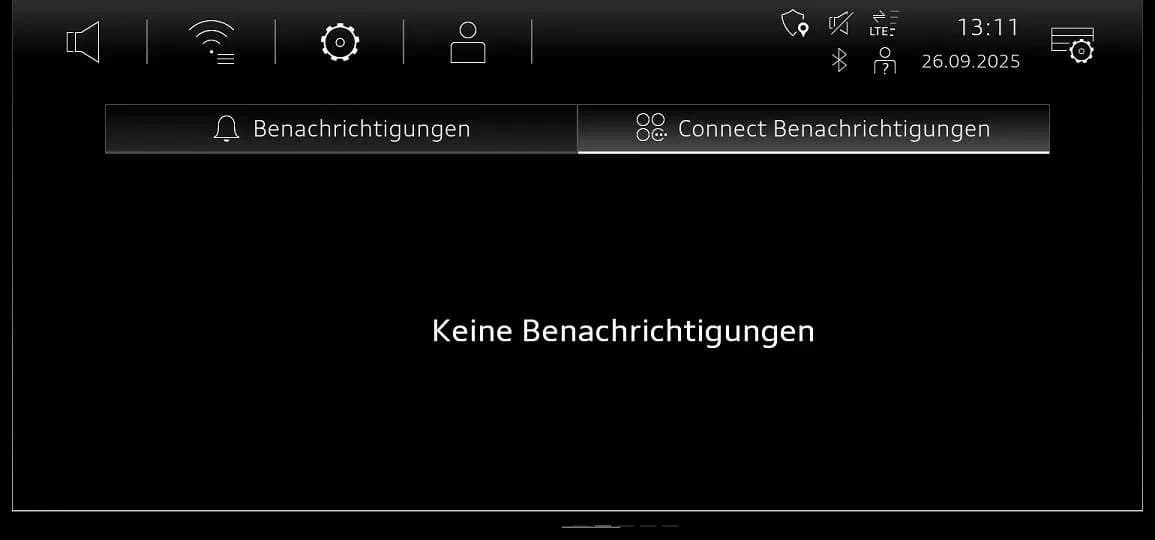
También aplica a
- Audi e-tron GT
- 2024–2025
- Audi RS e-tron GT
- 2024
Addressing MMI and Emergency Call Faults in Your Audi e-tron GT
Audi has released Technical Service Bulletin (TSB) 2079980/2 to address various MMI function problems and the display of an "Emergency call fault" message in 2024-2025 Audi e-tron GT and RS e-tron GT models. This bulletin outlines a comprehensive software update procedure for the MIB3 infotainment system and the AED control unit, aiming to restore full functionality and eliminate the "Audi e-tron GT Emergency call fault" warning.
Symptoms of MMI and Emergency Call Faults
Owners of affected vehicles may experience a range of issues related to the Multi Media Interface (MMI) system. These can include general malfunctions of various MMI functions, impacting navigation, entertainment, and connectivity features. A prominent symptom is the appearance of an "Emergency call fault" message displayed in the instrument cluster, indicating a potential problem with the vehicle's emergency call system.
Workshop findings confirm that vehicles exhibiting these symptoms often have specific older software versions in diagnostic address 5F. These include software versions 4014, 4026, 4318, and 4404. Identifying these software versions is a key indicator that your vehicle may require the update described in TSB 2079980/2.
Technical Background
The underlying cause for these MMI and emergency call system malfunctions is identified as software issues within the vehicle's control units. To rectify this, new software for the affected control units was integrated into vehicle production starting in model year 2025. This TSB provides the necessary update for vehicles produced prior to this change.
Important Warnings and Owner Information
This software update involves specific procedures and important considerations for both technicians and owners:
- Diagnostic Test Plans: The Guided Fault Finding test plans for diagnostic address 0075 should not be performed, as they cannot be invoiced and will be resolved by the software update itself.
- Update Duration: Expect a lengthy period of inactive time during the software update process. Technicians can work on other vehicles during this time, which is accounted for in warranty billing instructions.
- Warranty Billing: When carrying out this TSB, time stamps are not required for billing under warranty.
- User Input Prompts: The vehicle will use acoustic signals and flashing lights to indicate when user input is required during and at the end of the test program.
- Android Control Unit (078E) Update Condition: A second USB-C stick is necessary for the Android control unit software update. This update must only be performed if the software version in diagnostic address 078E is below 0621.
- USB-C Stick Preparation: It is crucial to prepare the required USB-C sticks before starting the repair. The same update media can be used for multiple vehicles.
- MIB3 Infotainment System: This update package also includes new software for the MIB3 infotainment system. For additional guidance on MIB3 software updates, refer to TSB 2060523, titled "91 MIB3: Software Update Instructions."
- USB Stick Insertion: Please be certain to leave the USB stick inserted. The correct time to remove the USB stick is described further down in the procedure.
- Skipping Step 1: If the Android control unit (078E) already has software version 0621, step 1 of the repair procedure can be skipped.
- AED Control Unit Update: The AED control unit can only be updated via the red menu in the MMI.
- Interrupted Procedure: If the update procedure is interrupted, repeat step 2. The test program will automatically resume the missing part of the update.
- USB Stick Requirement: This procedure will only work if the USB stick remains inserted until the download is complete.
- USB Stick Removal: After approximately 5 minutes, once the download is complete and the success message is displayed, Now please remove the USB stick.
- SVM Code Entry: For the new software update program, the SVM code must be entered exactly, including commas and without spaces. Scanning a QR code or copy-pasting is highly recommended to prevent errors.
- Market-Specific SVM Codes: Different SVM code chains and QR codes may be required depending on the specific market and the software version of the gateway (0019).
- Storage Media Restrictions: Do not use an SD card with an adapter USB stick. Also, avoid using USB-C sticks with a larger storage capacity, as they may have different formatting processes that are incompatible with the update.
Diagnostic Addresses and Related Bulletins
This TSB references several diagnostic addresses and related technical bulletins that are important for understanding the scope of the update:
- Diagnostic Address 5F: This address is where the older software versions (4014, 4026, 4318, 4404) are found, indicating the need for the update.
- Diagnostic Address 078E (AED Control Unit): This is the Android control unit that receives a manual software update. The update is only necessary if its software version is below 0621.
- Emergency Call Module (0075): This module is part of the SVM code update process.
- Gateway (0019): The gateway's software version influences which SVM code chain is required for the update.
- Information Electronics (005F): This module is also part of the SVM code update process.
Related TSBs that provide additional context or solutions for specific issues include:
- TSB 2060523 (91 MIB3: Software Update Instructions): Provides general information on MIB3 software updates.
- TSB 2079652 (Emergency call LED in roof module not lit up in green): Offers guidance if the emergency call LED does not illuminate green after the update.
Repair Procedure Summary (TSB 2079980/2)
The repair process for the "Audi e-tron GT Emergency call fault" and MMI issues involves a multi-step software update. It is crucial to follow these steps precisely:
Preparation Steps
- Vehicle Preparation: Park the vehicle and ensure the 12V battery is charged.
- USB-C Stick Preparation: Prepare two USB-C sticks. These sticks will be used to download and transfer the necessary software. It is critical to use USB-C sticks that are not too large in capacity (e.g., USB 2.0, 32 GB) to avoid formatting issues. Do not use SD cards with adapters.
- ODIS Update: Ensure the diagnostic tester being used has the latest ODIS update, as a newly developed test program for SVM code input is included in the ODIS software.
Step 1: Manual Software Update for AED Control Unit (078E) via Red Menu
This step focuses on updating the Android control unit (078E) through the MMI's hidden red menu.
- Check Current Software Version: If the Android control unit (078E) already has software version 0621 or higher, this step can be skipped.
- Insert USB Update Medium: Insert the prepared USB-C stick containing the AED update software into the vehicle's USB connection.
- Access Red Menu: Access the red menu in the MMI by pressing the specific button combination (refer to the vehicle's service manual for the exact sequence).
- Select Update Source: Within the red menu, navigate to "Update" and select the USB connection as the source where the update medium was inserted.
- Initiate Update: Scroll down to view all control units to be updated (AED) and start the update process.
- Update Completion: Once the manual update is successfully completed, exit the red menu entirely before proceeding to a diagnostic session.
- Maintain USB Stick Insertion: Please be certain to leave the USB stick inserted. The correct time to remove the USB stick is described further down in the procedure.
- MMI Restart: The MMI system will restart automatically. Wait until the MMI has fully initialized, and the home screen displays all applications.
- System Restart: Restart the system by pressing and holding the volume control for approximately 10 seconds.
- Check Notifications: Open the notification center and switch to the "Audi connect notifications" tab.
- Initially, you may see "Keine Benachrichtigungen" (No notifications).
- After some time, you should see messages like "Software Update 0621 (814MB) wird heruntergeladen" (Software Update 0621 (814MB) is being downloaded).
- Followed by "Download des Software Update beendet. Ein Neustart ist erforderlich." (Software update download complete. A restart is required.)
- Finally, you should see "Gratulation! Software 0621 wurde erfolgreich installiert" (Congratulations! Software 0621 successfully installed) and "Vielen Dank!" (Thank you!).
- USB Stick Removal: After approximately 5 minutes, once the download is complete and the success message is displayed, Now please remove the USB stick.
Step 2: SVM Code Entry for Emergency Call Module (0075), Gateway (0019), and Information Electronics (005F)
This step involves using the SVM (Software Version Management) system to update other critical control units.
- Access SVM Function: Use the "SVM - Authorized Multiple Code Entry" function within "Flash" mode.
- Enter SVM Code: The new software update program requires specific SVM codes. It is IMPORTANT that these codes are entered exactly as provided, without any commas or spaces. Scanning the provided QR code with a handheld scanner or copy-pasting the code chain is highly recommended to prevent errors.
- Market and Gateway Version Dependency: Be aware that different SVM code chains and QR codes are required depending on the specific market and the software version of the gateway (0019).
- Determine Gateway Software Version: Determine the software version in diagnostic address 0019 using the SVM code DUCIDENT0019 in the "SVM - Authorized Multiple Code Entry" function.
- If the software version in diagnostic address 0019 is SW0042, use the corresponding SVM code chain.
- For all other software versions in diagnostic address 0019, use the alternative SVM code chain.
- Specific SVM Code Chains:
- For SW0042 in diagnostic address 0019: (QR code provided in original document)
- For all other software versions in diagnostic address 0019:
078EA001,DUCDTCPR0075MLB,FLIGHTON0075MLB,ZGDOIP,CL3BPA001US,19A027,19B027,TGU1MDMVB,CL3BPA002US,FLIGHTOFF0075MLB
Step 3: Bus Sleep Mode
After completing the software updates, the vehicle needs to enter bus sleep mode.
- Enter Bus Sleep Mode: Put the vehicle into bus sleep mode.
- Restart MMI: Switch the ignition back on and start the MMI.
Step 4: Check Emergency Call LED
Verify the functionality of the emergency call system.
- Inspect LED: Check if the emergency call LED in the roof module illuminates green.
- Troubleshooting: If the LED does not turn green, refer to TSB 2079652, "Emergency call LED in roof module not lit up in green," for further diagnosis and resolution.
Step 5: End Diagnostic Session
- Finalize Session: Conclude the diagnostic session and send the diagnostic log online.
Required Tools and Parts
To perform the software update described in TSB 2079980/2, specific tools and parts are necessary:
- USB-C Sticks: Two USB-C sticks are required for creating the update media. It is important to use USB 2.0, 32 GB sticks, and avoid larger capacities or SD cards with adapters due to potential formatting incompatibilities.
- AED Control Unit Update Media: Part number
8W0906961DQ. - MIB3 Update Media:
- For MIB3 SW versions 4014, 4026, 4404: Part number
8W0906961GB. - For MIB3 SW version 4318: Part number
8W0906961GF.
- For MIB3 SW versions 4014, 4026, 4404: Part number
These update media packages must be downloaded onto the USB-C sticks. Ensure your ODIS diagnostic tester has the latest updates to support the new test program for SVM code input.
Warranty Information
For vehicles still under warranty, all claims submitted for payment must adhere to the Audi Warranty Policies and Procedures Manual. Claims are subject to review and audit by Audi Warranty. If the vehicle is outside of any warranty, this Technical Service Bulletin is considered informational only, meaning the repair may not be covered free of charge.
NHTSA ID: 11027339
Galería
7 imágenes
Frequently Asked Questions
- What issues does Audi TSB 2079980/2 address?
- Audi TSB 2079980/2 addresses various MMI function problems and the display of an "Emergency call fault" message in 2024-2025 Audi e-tron GT and RS e-tron GT vehicles. The primary cause is outdated software in the MIB3 infotainment and AED control units.
- How is the software update for the 'Audi e-tron GT Emergency call fault' performed?
- The update involves two main steps: first, a manual software update for the AED control unit (078E) via the MMI's red menu using a USB-C stick; second, entering specific SVM codes for the emergency call module (0075), gateway (0019), and information electronics (005F) using the 'SVM - Authorized Multiple Code Entry' function in 'Flash' mode.
- What specific software versions indicate my Audi e-tron GT needs this update?
- Vehicles requiring this update typically have older software versions in diagnostic address 5F, such as 4014, 4026, 4318, or 4404. Additionally, the Android control unit (078E) needs an update if its software version is below 0621.
- Are there any special tools or parts required for this TSB?
- Yes, two USB-C sticks (preferably USB 2.0, 32 GB) are required. Specific part numbers for the update media include 8W0906961DQ for the AED control unit and 8W0906961GB or 8W0906961GF for the MIB3 system, depending on the current software version. An updated ODIS diagnostic tester is also necessary.
- What should I do if the emergency call LED does not turn green after the update?
- If the emergency call LED in the roof module does not illuminate green after completing the software update, you should refer to Audi TSB 2079652, which specifically addresses the issue of the 'Emergency call LED in roof module not lit up in green' for further troubleshooting.
Related Articles
2024-2025 Audi e-tron GT MMI Software Update TSB 2079980/3
Audi has released Technical Service Bulletin (TSB) 2079980/3 for 2024-2025 e-tron GT and RS e-tron GT models to resolve issues with MMI functions and 'Emergency call fault' messages. This bulletin details a software update procedure for the MIB3 system.
2024-2025 Audi e-tron GT MMI Software Update for Connectivity Issues
Audi has released Technical Service Bulletin 2079979/3 for 2024-2025 e-tron GT and RS e-tron GT models to address various MMI functions problems and 'Emergency call fault' messages. This TSB provides a software update for the MIB3 connectivity box.
2022-2025 Audi e-tron GT On-Board Power System Fault TSB
Audi has issued Technical Service Bulletin (TSB) 2080377/2 for 2022-2025 e-tron GT and RS e-tron GT models concerning an 'on-board power system fault' and DTC P000000. Owners may see a yellow or red warning fault in the instrument cluster. This TSB outlines a reporting obligation for technicians.
2024-2025 Audi e-tron GT MMI Software Update TSB 2079979
This Technical Service Bulletin (TSB 2079979) addresses MMI function problems and the 'Emergency call fault' message in 2024-2025 Audi e-tron GT and RS e-tron GT vehicles. A software update for the MIB3 system and connectivity box is available.
2023 Audi Q5 Health Check: Recalls and Bulletins
The 2023 Audi Q5 has no reported recalls, owner complaints, or federal investigations. However, Audi has issued several technical service bulletins (TSBs) addressing various potential issues, including engine faults, electrical system warnings, and airbag system concerns. This article details…
Leave a comment
Comments are moderated and may take a moment to appear. Only your first name and the initial of your last name are shown publicly.
Comments
Be the first to comment.