2021-2023 Kia Models CarPlay/Android Auto Connectivity TSB
A Technical Service Bulletin (TSB ELE347) has been issued for 2021-2023 Kia vehicles to resolve Apple CarPlay and Android Auto phone projection connectivity issues. The fix involves a software update for Display Audio 2.0 and AVN5W head units.

Gilt auch für
- Kia Carnival
- 2022–2023
- Kia Forte
- 2022–2023
- Kia K5
- 2021–2022
- Kia Niro
- 2021–2023
- Kia Rio
- 2021–2023
- Kia Seltos
- 2021–2022
- Kia Sorento
- 2021–2023
- Kia Soul
- 2022
▸ 2 weitere anzeigen▾ Weniger anzeigen
Kia has released Technical Service Bulletin (TSB) ELE347 to provide a software update for Display Audio 2.0 (D2V) and 5th Generation AVN Wide (AVN5W) head units in various 2021-2023 Kia models. This update aims to improve the Kia CarPlay Android Auto phone projection experience and resolve related connectivity concerns.
Symptoms
Owners of affected 2021-2023 Kia vehicles may experience issues with their Apple CarPlay® or Android Auto™ phone projection features. These connectivity-related concerns can manifest as difficulty connecting a smartphone, intermittent disconnections, or general instability when using these integrated infotainment functions.
Important Warnings
Kia has issued several important advisories regarding this software update for Kia CarPlay Android Auto functionality:
- "A Technical Service Bulletin is a field fix repair program without customer notification that may be performed during the warranty period. Any dealer requesting to perform this repair outside the warranty period will require DPSM approval."
- "DO NOT turn the ignition switch 'OFF', start the engine, and/or remove the USB drive from the vehicle during the update process."
- "Confirm a fully charged battery is used (12.3 volts or higher is necessary)."
- "Before conducting the update, verify that the software is not the latest version."
- "If any issues occur during/after the software update, contact Kia America Techline for assistance."
- "The file should ONLY be downloaded using Google Chrome browser."
- When copying files to the USB drive, "Do NOT open these files."
- During the update, a pop-up window stating "No Supported Files." may appear, which is normal.
- The system may display "The system will restart." or "Updating the System..." during the process.
- For AVN5W updates, "It is recommended to leave the engine running while the update is completing."
- The AVN5W software update may take "up to one (1) hour and twenty five (25) minutes to complete." During this time, "No features will be available during the update, including:" the rear view camera and all audio.
- The system may display "Preparing System Update" or have a black screen for extended periods, which is normal.
- When prompted to confirm the USB device, be aware that "Confirm Selection of Portable Storage Device" will format the drive, deleting any stored data.
- If the USB drive is not recognized, the 'Update' button will not activate. In this case, remove and re-insert the USB drive and repeat steps.
Repair Procedure Summary
The software update for the Display Audio 2.0 and AVN5W head units involves two main stages: downloading the software to a USB drive and then installing it in the vehicle.
1. Software Download to USB Drive:
- A laptop or desktop computer is required, along with a new or reformatted USB flash drive with a minimum capacity of 8GB.
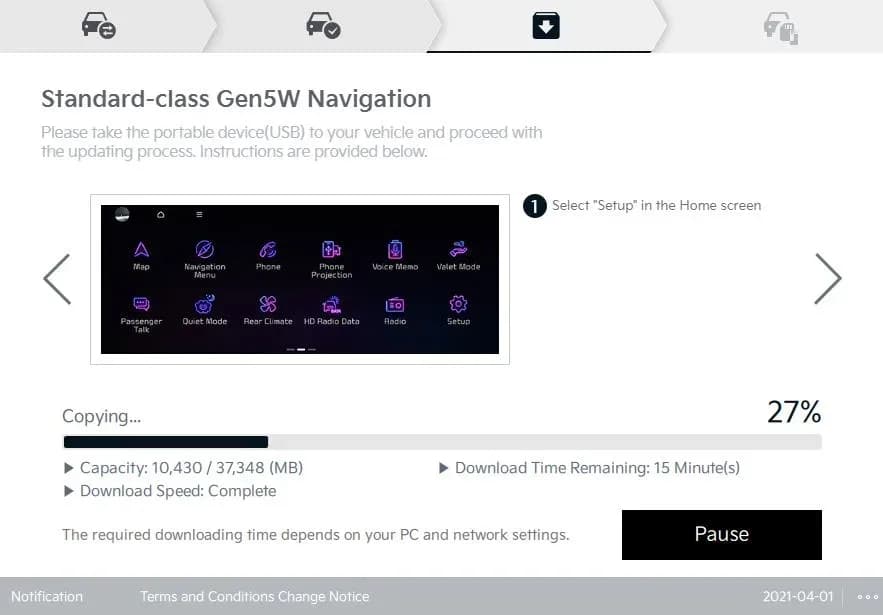
- The update software file, approximately 2 GB, must be downloaded from the Kia website. It is crucial to use Google Chrome for this download.
- After downloading the
.zipfile, extract the contents to the root directory of the USB drive. The extracted files, such as "enc_d2vsystem_package_134.100.240318" and "enc_system_package_134.100.240318", should not be opened directly.
2. In-Vehicle Software Update:
For Display Audio 2.0 (D2V) Head Units:
- Turn the vehicle's ignition switch to the 'ON' position.
- On the infotainment screen, navigate to 'Setup' > 'General' > 'SW Info/Update'.
- Insert the prepared USB flash drive into the USB slot located underneath the AVN unit.
- Select 'Update' on the screen. The system will prompt with "Update to the next version now?". Confirm to proceed.
- The update process typically takes 15 to 20 minutes. During this time, the display may show "Updating the System..." or go black, and the Kia logo may appear multiple times. Do not turn off the ignition, start the engine, or remove the USB drive.
- Once complete, the system will restart. Verify the software version has been updated.
For 5th Generation AVN Wide (AVN5W) Head Units:
- Turn the vehicle's ignition switch to the 'ON' position.
- If your vehicle has a 'Vehicle Auto-Shut Off' feature, ensure it is turned 'OFF' before proceeding.
- Select 'Confirm' on the AVN screen.
- Press the 'Power' button to turn the Radio/Media 'OFF'.
- On the infotainment screen, navigate to 'Setup' > 'General' > 'SW Info/Update'.
- Insert the prepared USB flash drive into the USB slot.
- Select 'Update Now' and then 'OK' to begin the update. It is recommended to keep the engine running during this process, which can take up to 1 hour and 25 minutes.
- The display may show "Preparing System Update" or be black for extended periods, and the Kia logo may appear. Do not interrupt the process.
- After the update, the system will restart. Verify the software version.
3. Post-Update Customer Actions: To ensure optimal performance of the Kia CarPlay Android Auto features after the update, owners should perform the following steps:
- On your phone: Update your iOS or Android operating system to the latest version. Then, in your phone's settings, delete all previously paired vehicles from both CarPlay/Android Auto settings and Bluetooth settings.
- On the head unit: Go to 'SETUP' > 'Device Connection' > 'Bluetooth® Connection' and delete all paired devices. Also, go to 'Phone Projection' and delete all Apple CarPlay® or Android Auto™ paired devices.
- Perform a hard reset of the infotainment system by pressing the reset button (usually a small pinhole requiring a paperclip or pen, refer to your owner's manual for its exact location).
- Finally, re-pair your phone's Bluetooth® and Phone Projection connections with the vehicle's head unit, ensuring Bluetooth® and Wi-Fi™ are enabled on your mobile device.
Required Tools or Parts
Technicians will require a USB flash drive with a minimum of 8GB capacity. Additionally, specific VDS (Vehicle Diagnostic System) types are used depending on the model:
- VDS 1 Type: Applicable for Forte (BDm PE), Carnival (KA4), Sorento (MQ4a), Niro HEV (DE HEV), Rio (SC), K5 (DL3a), Telluride (ON), Niro PHEV (DE PHEV), Sportage (NQ5), and Sportage HEV (NQ5 HEV).
- VDS 4 Type: Applicable for Soul (SK3).
- VDS 5 Type: Applicable for Seltos (SP2).
Owner Action
If you are experiencing Apple CarPlay® or Android Auto™ connectivity issues with your 2021-2023 Kia vehicle, you should contact your authorized Kia dealership. This software update is a field fix repair program and may be performed under warranty. Kia is not directly notifying consumers about this TSB, so owners must proactively seek the update if they are affected. Dealers will use Labor Op Code 96160F07 for this repair.
NHTSA ID: 11005368
Galerie
42 Bilder
Frequently Asked Questions
- What issues does Kia TSB ELE347 address?
- TSB ELE347 addresses Apple CarPlay and Android Auto phone projection connectivity issues in various 2021-2023 Kia models, aiming to improve the stability and functionality of these features.
- How is the software update performed for Kia CarPlay Android Auto issues?
- The update involves downloading software to a USB drive from the Kia website, then inserting the USB into the vehicle's Display Audio 2.0 or AVN5W head unit and following on-screen prompts to install the new software.
- Is there a cost for this software update?
- This software update is a field fix repair program and may be performed under warranty at no cost to the owner. However, it's advisable to confirm warranty coverage with your Kia dealership.
- What should I do if I experience Kia CarPlay Android Auto connectivity problems?
- If you are experiencing connectivity issues with your Kia CarPlay Android Auto, you should schedule an appointment with your local Kia dealership to have the software update (TSB ELE347) performed on your vehicle's infotainment system.
What Kia Sportage owners report
Counted from the records in our database across 32 model years.
- 4,907
- Owner complaints
- 38
- Recalls
- 679
- Service bulletins
- 322
- Crashes reported
- 208
- Fires reported
- 274
- Injuries reported
The 2023 model year
310 complaints, the 4th most of 32 model years on file. Owners reported 28 crashes, 1 fire and 18 injuries for this year, which also has 7 recalls on file.
Electrical System, the system this article covers, accounts for 687 of 4,907 complaints (14%), including 86 for 2023.
Complaints by model year
| 1998 | 303 | |
|---|---|---|
| 1999 | 284 | |
| 2000 | 304 | |
| 2001 | 228 | |
| 2002 | 234 | |
| 2011 | 181 | |
| 2012 | 392 | |
| 2013 | 381 | |
| 2017 | 404 | |
| 2023 | 310 |
Most-reported systems
- Engine — 1,558
- Electrical System — 687
- Service Brakes — 613
- Power Train — 481
- Engine And Engine Cooling — 477
Latest recalls for the 2023 model year
- 25V874000 — Trailer Hitches (Dec 2025)
- 24V025000 — Structure (Jan 2024)
- 23V531000 — Power Train (Jul 2023) — Park outside
Recent owner reports about electrical system
I was driving on the highway going about 70mph and the car completely shut off. When off I couldn’t accelerate or brake. I put my hazards on and pulled over. The car continued to turn off and on. It couldn’t stay on.
Read owner complaints →Was driving my child to school when the Hybrid System alert came on, I only had a few seconds to try and pull over before the car completely shut down, we lost all motive power.
Complaints are owner reports filed with NHTSA. They are unverified, and counts depend on how many vehicles were sold, so they are not a failure rate.
Related Articles
2023 Kia Sportage Health Check: Common TSBs and Known Issues
The 2023 Kia Sportage has no recalls or owner complaints registered with NHTSA, but several manufacturer service bulletins address issues like cooling system performance, engine misfires, AVNT screen flickering, and infotainment connectivity problems.
2023 Kia Sportage Cooling System Performance TSB
Kia has issued Technical Service Bulletin ENG259 (Rev 1) for 2023 Sportage models experiencing a Multifunction Indicator Lamp (MIL) illumination with specific cooling system performance DTCs. The bulletin outlines the procedure to replace the Integrated Thermal Management Module (ITM) and update…
2021-2023 Kia Sorento Sportage GDI Misfire DTC TSB
Kia has issued Technical Service Bulletin FUE068 (CA2505) for 2021-2023 Sorento and Sportage models with the Theta III 2.5L GDI engine. This bulletin addresses cylinder misfire DTCs (P030000-P030400) that can lead to no-start, misfire, or reduced power due to GDI fuel injector damage.
2023 Kia Sportage Cooling System Performance TSB
This Kia Technical Service Bulletin (TSB ENG259) addresses Malfunction Indicator Lamp (MIL) illumination with DTCs P218100, P2181F0, or P2181F1 in 2023 Kia Sportage vehicles. The issue stems from Integrated Thermal Management Module (ITM) degradation, leading to cooling system performance issues…
2023 Kia Sportage AVNT Screen Flickering TSB
A Technical Service Bulletin (TSB ELE355) has been issued for the 2023 Kia Sportage (NQ5a) regarding the Audio Video Navigation Telematics (AVNT) head unit. Owners may experience the AVNT screen flickering 'ON/OFF' due to an intermittent coaxial cable connection.
Leave a comment
Comments are moderated and may take a moment to appear. Only your first name and the initial of your last name are shown publicly.
Comments
Be the first to comment.