2024-2025 Audi A5/Q5/S5/SQ5 Apple CarPlay Connection Issues TSB
This Technical Service Bulletin (TSB 2079620/1) addresses various Apple CarPlay connection issues in 2024-2025 Audi A5, Q5, S5, and SQ5 models. Learn about common symptoms, detailed troubleshooting steps, and important warnings to resolve problems like automatic connection failures, interrupted…
 Marcus Weber2025 Audi A5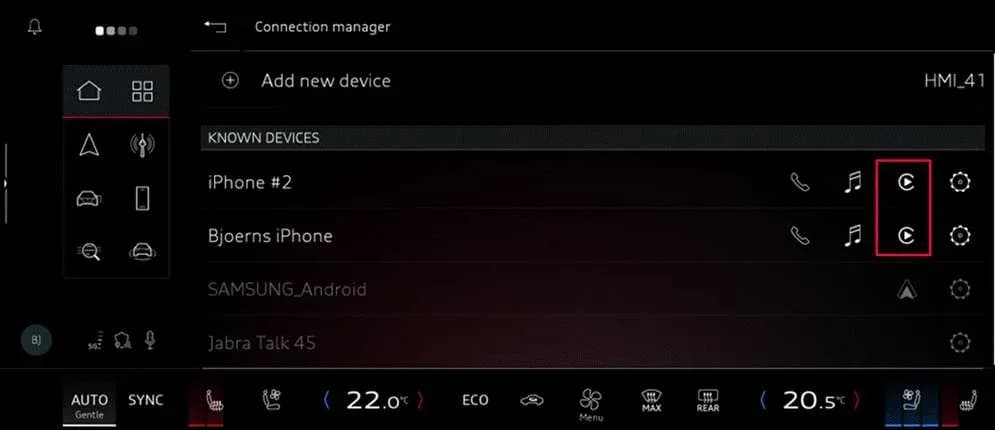
Si applica anche a
- Audi Q5
- 2025
- Audi S5
- 2025
- Audi SQ5
- 2025
Owners of 2024-2025 Audi A5, Q5, S5, and SQ5 vehicles may encounter various problems with their Apple CarPlay system, ranging from intermittent connectivity to complete failure. Technical Service Bulletin (TSB) 2079620/1, released on October 7, 2025, provides comprehensive guidance for diagnosing and resolving these Audi A5 CarPlay connection issues. This bulletin is specifically for PPE/PPC platform vehicles in the United States market.
The TSB highlights that complaints often stem from incorrect MMI or iPhone settings, as well as limitations within the iPhone's software. The recommended approach involves checking the complaint using the newest iPhone software and following a series of detailed troubleshooting steps to restore proper Apple CarPlay functionality.
Symptoms of Apple CarPlay Connection Problems
Owners may experience a variety of symptoms related to the Audi A5 CarPlay connection, indicating a problem with the system. These are categorized by the object of complaint and the type of complaint:
- Cell phone interface display (Apple CarPlay):
- "functionality -> operation sequence incorrect"
- "functionality -> cannot be switched off/deactivated"
- "functionality -> no function"
- "control modules, services -> no data transfer"
- "control modules, services -> error message"
- "control modules, services -> service unavailable"
- "control modules, services -> no access"
- "functionality -> operation complicated"
- "control modules, services -> communication interrupted"
- Media player (Apple CarPlay):
- "functionality -> no function"
- "control modules, services -> service unavailable"
- Telephone function (Apple CarPlay):
- "control modules, services -> no data transfer"
- "functionality -> no function"
- Message service (Apple CarPlay):
- "functionality -> no function"
- Navigation function (Apple CarPlay):
- "control modules, services -> no data transfer"
- "functionality -> no function"
- "control modules, services -> service unavailable"
- USB/AUX connection:
- "functionality -> no function"
Important Warnings
- Safety Hazard: "Please only adjust the suggested settings when the vehicle is safely parked so as not to pose a safety hazard to other road users!"
- Network Settings Reset: Resetting network settings on your iPhone will remove all previously saved Wi-Fi connections. This is an important consideration before performing this step.
Diagnosis and Troubleshooting Steps
This TSB provides a structured approach to diagnosing and resolving Audi A5 CarPlay connection problems. The troubleshooting steps often involve adjusting settings on both the vehicle's MMI system and the owner's iPhone. The iPhone screenshots used in this TSB were taken with an iPhone SE Gen2 running iOS 17.2 in English; settings may vary slightly based on your iOS version, model, and language.
Interrupted CarPlay Connection (USB/Wireless)
Some owners report that their CarPlay connection is interrupted if they initially connect their iPhone via USB and then unplug the cable, even if a wireless connection was established during setup. This is considered expected behavior.
- Explanation: When an iPhone is connected via USB before CarPlay is fully established, the iPhone decides whether to establish the CarPlay connection via USB or Wi-Fi. In most cases, it establishes a connection via cable. If the customer then unplugs the cable, the connection is interrupted.
- Solution: If this occurs, the owner can then manually select the phone in the MMI's connection manager to establish a wireless connection.
CarPlay Not Established Automatically
Automatic CarPlay connection may fail under various circumstances. However, the connection can often be successfully established manually.
- Solution: As a rule, the connection is successfully established if the vehicle is selected manually on the iPhone under "Settings > General > CarPlay".
- Further Action: If this still does not work, changing the user in the MMI can help. For example, switching from the current user to the guest user and back again can restart the CarPlay process and facilitate a new connection attempt.
CarPlay Only Works via USB, Not Wi-Fi
This scenario occurs when the wireless CarPlay connection fails.
- Problem: The active Wi-Fi connection that CarPlay uses is "NOT visible on the iPhone." If an active Wi-Fi connection is available and visible, this may be blocking the wireless CarPlay connection.
- Solution: Disconnect the active Wi-Fi connection on the iPhone and restart the CarPlay connection.
- Check: Ensure both Wi-Fi and Bluetooth are switched on in the iPhone.
Ensuring 5GHz Wi-Fi and Bluetooth are Active
For wireless CarPlay to function correctly, specific vehicle settings must be active.
- Requirement: To use CarPlay, the vehicle's 5GHz Wi-Fi must be visible in the phone's available networks.
- Solution: Check whether the Wi-Fi hotspot and the Bluetooth connection are activated on the MMI. The MMI may display a message such as "Bluetooth and the vehicle hotspot are deactivated. Please activate Bluetooth and the vehicle hotspot to use Apple CarPlay."
Addressing USB Cable Interference
Past use of a USB cable during setup can sometimes interfere with wireless connections.
- Problem: The USB cable may have been used when setting up the connection, causing the wireless connection to be rejected.
- Solution: Re-pair the iPhone with the vehicle. Refer to the "Detailed Re-pairing Procedure for iPhone and MMI" section below.
Clearing Known Wi-Fi Networks on iPhone
A long list of saved Wi-Fi networks on the iPhone can impair wireless connectivity.
- Problem: If the list of known Wi-Fi networks on the iPhone is very long, this can impair the wireless connection.
- Solution: It is recommended to clean up the list of known networks in the Wi-Fi settings of the iPhone in the event of connection issues. Delete networks that are no longer required from the Wi-Fi settings on the iPhone.
Unlocking the iPhone
In some cases, the iPhone's locked state can prevent connection.
- Problem: It may be necessary to unlock the phone to enable the connection.
- Solution: Please unlock the phone.
Detailed Re-pairing Procedure for iPhone and MMI
If the above steps do not resolve the Audi A5 CarPlay connection issues, a complete re-pairing of the iPhone with the vehicle's MMI system is recommended. This involves deleting all relevant connection data from both devices.
Steps in the MMI
- Delete all information about the phone: Access the connection manager in the MMI and remove any stored data for the iPhone.
- Delete Bluetooth information: Also delete the information on the phone regarding the Bluetooth connection in the MMI.
- Check Wi-Fi hotspot name: In the MMI via the connection manager, verify that the Wi-Fi hotspot name matches the Bluetooth name of the MMI.
- Match names (if different): If the names are different, match them up. Ensure the name is secure and not too general (e.g., do not just use 'AUDI').
- Set Wi-Fi hotspot password: A password must also be set for the Wi-Fi hotspot.
Steps on the iPhone
- Delete vehicle Wi-Fi hotspots: Delete BOTH vehicle Wi-Fi hotspots from the phone under "Settings > Wi-Fi > Edit (top right) > remove vehicle hotspots from the list of known networks."
- Delete vehicle Bluetooth settings: Go to "Settings > Bluetooth", tap the blue 'i' icon next to the vehicle's Bluetooth device name, and select "Forget this device."
- Delete vehicle CarPlay settings: Navigate to "Settings > General > CarPlay", select the vehicle from the list, and then select "Forget this car."
Resetting Network Settings as a Last Resort
After attempting all other troubleshooting and re-pairing steps, if the issue persists, resetting the iPhone's network settings can be helpful, especially after an iOS update or when transferring data from an old device to a new one.
- Procedure: Go to "Settings > General > Transfer or Reset iPhone > Reset > Reset Network Settings."
- Warning: Remember that "This will remove any saved Wi-Fi connections."
After completing all necessary steps, carefully set up CarPlay again for the iPhone in the vehicle.
Warranty Information
This Technical Service Bulletin (TSB 2079620/1) outlines the warranty claim details for addressing these issues:
- Claim Type: If the vehicle is outside of any warranty, this TSB is informational only.
- Service Number: 9109
- Damage Code: AD39
- Labor Operations: Check display and operating unit control unit
- Code: 9196 0199
- Time Units (TU): 20 TU
- Claim Comment: As per TSB 2079620/1
All warranty claims submitted for payment must comply with the Audi Warranty Policies and Procedures Manual and are subject to review or audit by Audi Warranty.
Additional Information
Owners are encouraged to implement the solutions described in the Service section themselves. All part and service references provided in this TSB (2079620) are subject to change and/or removal. Always check with your Parts Department and/or ETKA for the latest information and parts bulletins. Additionally, check the Repair Manual for fasteners, bolts, nuts, and screws that require replacement during the repair.
Source: NHTSA ID: 10249767
Galleria
6 immagini
Frequently Asked Questions
- What are the common symptoms of Apple CarPlay issues in 2024-2025 Audi models?
- Common symptoms include CarPlay not connecting automatically, connections being interrupted, CarPlay only working via USB but not Wi-Fi, error messages, or the system reporting 'no function' or 'service unavailable'. These issues are detailed in TSB 2079620/1, which addresses the Audi A5 CarPlay connection.
- How can I fix my 2024-2025 Audi A5 CarPlay connection if it's not connecting automatically?
- If your Audi A5 CarPlay connection isn't automatic, you can often resolve it by manually selecting the vehicle on your iPhone. Go to 'Settings > General > CarPlay' on your iPhone and choose your Audi from the list. If this doesn't work, try switching between user profiles in the MMI to reset the CarPlay process.
- My Apple CarPlay only works with a USB cable, not wirelessly. What should I do?
- If your CarPlay only works via USB, ensure that your iPhone's Wi-Fi and Bluetooth are both switched on. Also, check that the vehicle's 5GHz Wi-Fi hotspot is visible in your iPhone's available networks and that the Wi-Fi hotspot and Bluetooth connection are activated on the MMI. Disconnecting any active Wi-Fi connection on your iPhone and restarting CarPlay can also help. The TSB 2079620/1 provides detailed steps for these checks.
- What should I do if I need to re-pair my iPhone with my Audi for CarPlay?
- To re-pair your iPhone, first delete all information about the phone from the MMI and delete the Bluetooth connection. On your iPhone, delete both vehicle Wi-Fi hotspots from 'Settings > Wi-Fi > Edit (top right)' and delete the vehicle's Bluetooth settings by going to 'Settings > Bluetooth', tapping the 'i' next to the device, and selecting 'Forget this device'. Finally, delete the CarPlay settings under 'Settings > General > CarPlay' by selecting the vehicle and choosing 'Forget this car'.
- What is the warranty information for this Apple CarPlay issue?
- For vehicles under warranty, the repair involves a labor operation code 9196 0199 with 20 TU (Time Units) and a damage code AD39, as per TSB 2079620/1. If the vehicle is outside of warranty, this Technical Service Bulletin is informational only, meaning the repair may not be covered.
Related Articles
2025 Audi A5 Health Check: Software Issues and Service Bulletins
The 2025 Audi A5 has no reported recalls or owner complaints, but several manufacturer service bulletins address software-related issues. These TSBs cover problems with the MMI system, rear lid operation, parking systems, and drivetrain, often resolved with software updates.
2024-2025 Audi On-Car Analysis: Check Engine Light & DTCs
Audi's March 2025 On-Car Analysis list provides guidance for technicians on several issues affecting 2024-2025 Audi A3, Q5, and A5 models. These include check engine lights, vehicle sound malfunction warnings, and specific diagnostic trouble codes (DTCs) such as POE5E00 and P219500. The document…
2025-2026 Audi A5/Q5 Coolant Pump V188 Blocked P2BC100 TSB
Audi TSB 2080825/2 addresses the 'Coolant pump for charge air cooler, blocked' issue (DTC P2BC100) and 'Drive system: fault' message in 2025-2026 Audi A5 and Q5 models, often after extended stationary periods. It outlines diagnosis and repair steps.
2025 Audi A5/Q5/S5/SQ5: 'Position P Cannot Be Selected'
A Technical Service Bulletin (TSB 2080044/4) has been issued for certain 2025 Audi A5, Q5, S5, and SQ5 vehicles regarding an issue where 'Position P cannot be selected' and the vehicle cannot be locked. This condition is resolved with a software update.
2025 Audi A5/S5/Q5/SQ5 Software Update Flashing Issues
This technical service bulletin (TSB 2079692/5) from Audi addresses various issues encountered during the combined software update 03.10.00/C (28.13.01) KD2 for 2025 Audi A5, S5, Q5, and SQ5 models. It covers diagnostic errors, control module communication problems, and solutions for successful…
Leave a comment
Comments are moderated and may take a moment to appear. Only your first name and the initial of your last name are shown publicly.
Comments
Be the first to comment.